Account Settings
Manage your personal account settings, security, and preferences in SAMS.
Your account settings control your personal preferences, security configuration, and billing information. Access your settings at /app/settings/ to customize your SAMS experience.
General Settings
Profile Information
Manage your basic profile information at /app/settings/general/:
Personal Details
- Full Name: Your display name across the platform
- Email Address: Primary email for account communication
- Profile Avatar: Upload a custom profile picture
- Time Zone: Set your preferred time zone for scheduling and timestamps
Preferences
- Language: Choose your preferred interface language
- Theme: Select light or dark mode (or automatic based on system preference)
- Notifications: Configure email and in-app notification preferences
- Default Organization: Set which organization to show when logging in
Communication Preferences
Control how SAMS communicates with you:
- Product Updates: Receive announcements about new features
- Security Alerts: Important security notifications (recommended to keep enabled)
- Billing Notifications: Payment confirmations and billing reminders
- Marketing: Optional promotional emails and newsletters
Security Settings
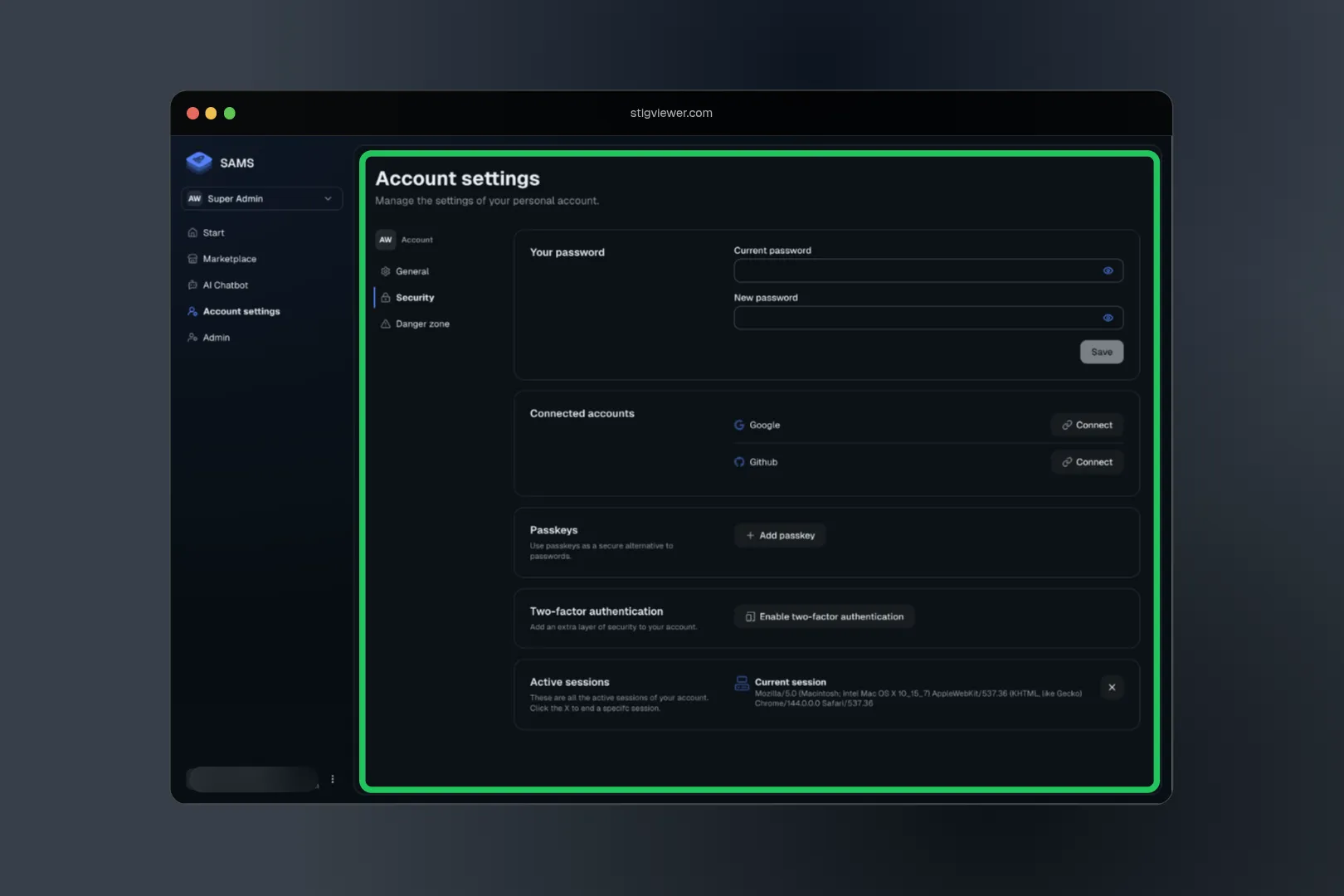
Access security settings at /app/settings/security/ to protect your account:
Password Management
Change Password
- Update your account password
- Requires current password verification
- Password strength indicators and requirements
- Automatic logout from other sessions after change
Password Requirements
- Minimum 8 characters
- Mix of uppercase, lowercase, numbers, and symbols
- Cannot reuse last 5 passwords
- Regular password change recommendations
Two-Factor Authentication (2FA)
Enhance account security with 2FA:
Setup Process
- Navigate to Security Settings
- Click "Enable Two-Factor Authentication"
- Scan QR code with authenticator app (Google Authenticator, Authy, etc.)
- Enter verification code to confirm setup
- Save backup codes in secure location
Backup Codes
- 10 single-use backup codes generated during setup
- Use if authenticator app is unavailable
- Generate new codes if original set is compromised
- Store securely (password manager recommended)
Supported Authenticator Apps
- Google Authenticator
- Authy
- Microsoft Authenticator
- 1Password
- Bitwarden
- Any TOTP-compatible app
Passkey Authentication
Set up passwordless authentication using passkeys:
What are Passkeys?
- Modern authentication using biometrics or device PIN
- More secure than passwords
- Faster login experience
- Syncs across your devices
Setting Up Passkeys
- Navigate to Security Settings > Passkeys
- Click "Add Passkey"
- Follow browser prompts to create passkey
- Use biometric authentication or device PIN
- Test login with new passkey
Managing Passkeys
- View all registered passkeys
- Add multiple passkeys for different devices
- Remove compromised or unused passkeys
- Set passkey as primary authentication method
Session Management
Monitor and control your active sessions:
Active Sessions
- View all devices and locations where you're logged in
- See last activity timestamp for each session
- Identify suspicious or unknown sessions
- Remotely log out from specific sessions
Session Security
- Sessions expire after 30 days of inactivity
- Force logout from all sessions when password changes
- Location and device information for security monitoring
- Automatic session termination for security events
Connected Accounts
Manage social login connections:
Social Providers
- Google, GitHub, Microsoft, and other OAuth providers
- Link multiple providers to your account
- Use any connected provider for login
- Maintain account access if one provider is unavailable
Managing Connections
- Add new social login providers
- Remove unused or compromised connections
- See last login time for each provider
- Primary email address management across providers
Billing Settings
Manage your personal billing information at /app/settings/billing/:
Payment Methods
Adding Payment Methods
- Credit/debit cards (Visa, MasterCard, American Express)
- Bank account (ACH) for US customers
- PayPal for supported regions
- Wire transfer for enterprise accounts
Payment Method Management
- Set default payment method
- Update card information and expiration dates
- Remove old or unused payment methods
- Secure storage with PCI compliance
Billing History
Access your complete billing history:
- Personal Subscriptions: Individual plan charges
- Organization Billing: Charges for organizations you administrate
- Invoice Downloads: PDF receipts for accounting
- Tax Information: Support for tax reporting and compliance
Subscription Management
If user-level billing is enabled:
- Current Plan: View your active subscription
- Plan Changes: Upgrade or downgrade your plan
- Usage Monitoring: Track usage against plan limits
- Cancellation: Cancel subscriptions with proper notice
Privacy and Data
Data Export
Request copies of your personal data:
- Profile Information: Basic account details
- Activity Logs: Your platform usage history
- Organization Data: Data from organizations you own
- Export Format: JSON or CSV formats available
Data Deletion
Control your data retention:
- Account Deletion: Permanent removal of your account
- Data Retention: Understanding what data is kept and for how long
- Organization Impact: How account deletion affects organizations you own
- Grace Period: 30-day recovery window for accidental deletions
Privacy Controls
Manage your privacy settings:
- Profile Visibility: Control who can see your profile information
- Activity Tracking: Opt out of non-essential analytics
- Data Sharing: Control how your data is used for product improvement
- Cookie Preferences: Manage tracking and analytics cookies
Advanced Settings
API Access
Manage your personal API access:
- API Tokens: Generate tokens for personal integrations
- Token Scopes: Control what your tokens can access
- Usage Monitoring: Track API usage and rate limits
- Documentation: Access personal API documentation
Developer Settings
For developers and power users:
- Webhook Endpoints: Set up personal webhooks
- Beta Features: Opt into experimental features
- Debug Mode: Enhanced logging for troubleshooting
- API Versioning: Choose which API versions to use
Account Deletion
Danger Zone
Critical account actions at /app/settings/danger-zone/:
Account Deletion Process
- Backup Data: Export important information first
- Organization Transfer: Transfer ownership of organizations you own
- Confirmation: Multiple confirmation steps required
- Grace Period: 30-day recovery window
- Permanent Deletion: Complete removal after grace period
Before Deleting Your Account
- Export any important data
- Transfer ownership of organizations
- Cancel active subscriptions
- Inform team members of your departure
- Update any integrations using your API tokens
What Happens When You Delete Your Account
- Immediate logout from all sessions
- Profile information marked for deletion
- 30-day grace period for recovery
- Organization ownership transferred or organizations deleted
- API tokens immediately invalidated
- Billing history preserved for legal compliance
Troubleshooting
Common Issues
Login Problems
- Reset password if forgotten
- Check 2FA codes are time-synchronized
- Clear browser cache and cookies
- Try alternative login methods (social, passkey)
2FA Issues
- Use backup codes if authenticator unavailable
- Re-sync authenticator app time settings
- Reset 2FA with email verification
- Contact support for recovery assistance
Billing Problems
- Verify payment method is current
- Check billing address information
- Review failed payment notifications
- Contact support for billing disputes
Getting Help
Self-Service Resources
- Comprehensive documentation and guides
- Community forums and user discussions
- Video tutorials and walkthroughs
Support Channels
- Email support for account issues
- Live chat during business hours
- Security incident reporting
- Billing and payment support
Security Best Practices
Account Security
- Strong Authentication: Use 2FA and passkeys
- Unique Passwords: Don't reuse passwords from other sites
- Regular Reviews: Monitor sessions and connected accounts
- Prompt Updates: Keep contact information current
Privacy Protection
- Data Awareness: Understand what data you're sharing
- Regular Exports: Backup important data regularly
- Permission Reviews: Check app and integration permissions
- Privacy Settings: Regularly review and update privacy controls
Operational Security
- Session Hygiene: Log out from public/shared computers
- Device Security: Use device locks and encryption
- Network Safety: Avoid public WiFi for sensitive operations
- Incident Reporting: Report suspicious activity immediately
By properly configuring your account settings, you can ensure a secure, personalized, and efficient SAMS experience tailored to your needs and preferences.